Accounts and Access
L@ti-View Dongle
| A valid license USB license dongle must remain in place for the duration of the L@ti-View session. Its removal will prevent additional logins and will disable L@ti-View after a period of time. The USB dongle is encrypted and contains a license for one machine only. It must remain installed for the 2D GUI to continue running. |
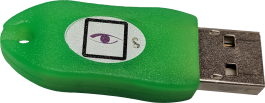
USB license dongle |
L@ti-View and its dependencies will run in the background. Log in with an appropriate user account and password to interact with the software, acknowledge alerts, silence buzzers, etc.
Default User Accounts
L@ti-View is supplied with four levels of default user accounts and passwords, which should be changed following the software installation. The default accounts and passwords are case sensitive and are:
| Administrator | admin |
| Maintainer | maintainer |
| Manager | manager |
| Operator | operator |
It is advisable to have at least two Administrator accounts, as lower levels cannot change passwords or account details for higher levels.
NOTE Three incorrect tries will lock L@ti-View for 60 seconds. All login attempts (successful or failed) are time-stamped and recorded in the Event Log.
Logging In and Out
Log In
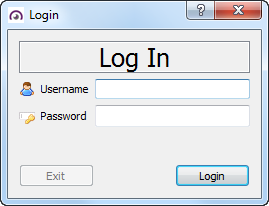
To log in, enter the appropriate credentials in the Log In window.
Log Off and Exit
Only a logged in user with Administrator level access can close (exit) L@ti-View safely. Using any other method (e.g., Ctrl-Alt-Del) could result in software corruption or loss of data.
1. To log out, click the Log Off icon in the toolbar, or File > Log Off.
2. To exit, click File > Exit.
User Groups
There are four default User Groups plus optional custom user groups, and each group can be assigned with custom User Group tokens that are used to grant or deny access to specific L@ti-View components. This table is a guide, but Administrators can create customized user accounts or access levels to match their own requirements.
|
Task |
3 |
3 |
2 |
1 |
0 |
|---|---|---|---|---|---|
|
SysAd |
Maint. |
Manager |
Operator |
Other |
|
|
Log In |
Yes |
Yes |
Yes |
Yes |
Yes |
|
Fire maintenance functions |
Yes |
Yes |
Yes |
Yes |
No |
|
Access operational procedures |
Yes |
Yes |
Yes |
Yes |
No |
|
View Active Events |
Yes |
Yes |
Yes |
Yes |
No |
|
View Active Fires |
Yes |
Yes |
Yes |
Yes |
No |
|
View Cause and Effect Strategy |
Yes |
No | No | No | No |
|
Poll Device Analog values |
Yes |
Yes |
Yes |
No | No |
|
Manual refresh device status |
Yes |
No | No | No | No |
|
Disable / Enable Devices |
Yes |
Yes |
Yes |
Yes |
No |
|
Disable / Enable Zones |
Yes |
Yes |
Yes |
Yes |
No |
|
Acknowledge Events |
Yes |
Yes |
Yes |
Yes |
No |
|
Acknowledge Fire Events |
Yes |
Yes |
Yes |
Yes |
No |
|
Manual Evacuation |
Yes |
No | No | No | No |
|
Reset Fire Devices |
Yes |
Yes |
Yes |
Yes |
No |
|
Silence Alarms |
Yes |
Yes |
Yes |
Yes |
No |
|
Silence Buzzer |
Yes |
Yes |
Yes |
Yes |
No |
|
System Alarm Acknowledgment |
Yes |
Yes |
Yes |
Yes |
No |
|
System Alarm Unacknowledgment |
Yes |
Yes |
Yes |
Yes |
No |
|
Local alarm (PC) volume control |
Yes |
Yes |
No | No | No |
|
Clear Hard Troubles |
Yes |
No | No | No | No |
|
Disable / Enable Alarm Reporting |
Yes |
No | No | No | No |
|
Clear Alarms |
Yes |
No |
Yes |
No |
No |
|
Find Mode |
Yes |
No |
No |
No |
No |
|
Select Mode |
Yes |
Yes |
Yes |
Yes |
No |
|
Fire System Topology View |
Yes |
No | No | No | No |
|
Export tables |
Yes |
Yes |
Yes |
Yes |
No |
|
Generate Reports |
Yes |
Yes |
Yes |
No |
No |
|
View Historical Events |
Yes |
Yes |
Yes |
Yes |
No |
|
View Maintenance Log |
Yes |
Yes |
Yes |
No |
No |
|
Fire Mode in 2D GUI |
Yes |
Yes |
Yes |
Yes |
No |
|
Fire configuration |
Yes |
Yes |
No |
No |
No |
|
Fire simulation mode |
Yes |
Yes |
Yes |
Yes |
No |
|
View System Information page |
Yes |
Yes |
Yes |
Yes |
No |
|
View Fire Management GUI |
Yes |
Yes |
Yes |
Yes |
No |
|
Operate/Restore Outputs |
Yes |
Yes |
No |
No |
No |
|
Save Column Widths |
Yes |
Yes |
Yes |
Yes |
No |
|
Change Own Password |
Yes |
No |
No | No | No |
|
Account Management (Edit/Create/Delete users) |
Yes |
Yes |
No | No | No |
|
Database management and editing |
Yes |
No |
No | No | No |
|
Workstation Configuration |
Yes |
Yes |
No | No | No |
|
Use 2D Editor mode |
Yes |
Yes |
No | No | No |
|
Exit L@ti-View |
Yes |
Yes |
No | No | No |
Change User Passwords
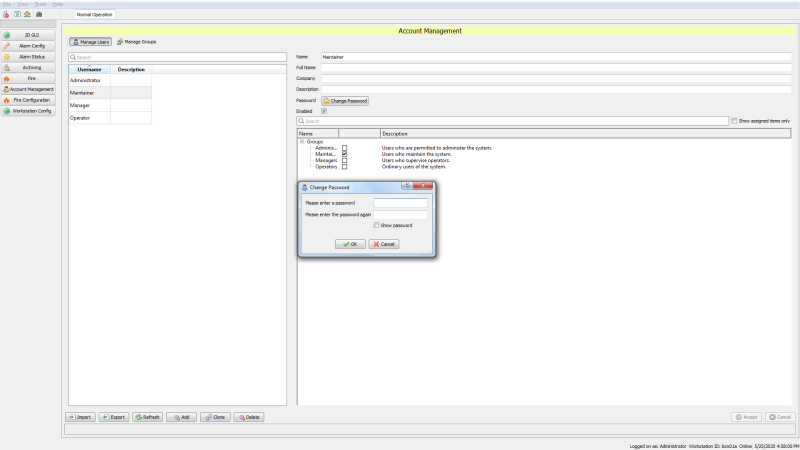
- Log in to L@ti-View with an appropriate account level.
- Click Account Management from the System Configuration Menu, select a user name (or add a new one), and select Change Password.
- Enter the required details and click OK.
System Administrators should decide if they want to use individual user accounts, or role-based user accounts with shared passwords, or a mixture of the two. Individual accounts are more secure than shared accounts and can be used to control or block access by individuals, whereas a shared operator account might be useful in locations where L@ti-View runs constantly.
All users must manually log off at the end of their session. All log in, log out, and exit events are time stamped in the Events log. Failure to log off could allow another user to perform unauthorized actions.
Change Individual Password
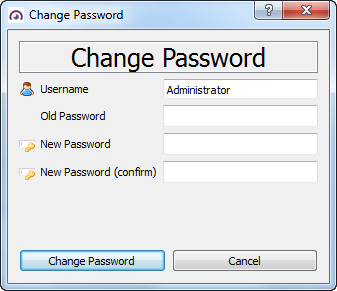
Click File > Change Password... and enter the desired details in the Change Password window.